If you create a video clip, the easy way to
post it on your Web site is to first upload it to YouTube, which offers
tools for compressing and cleaning up your video. Uploading a video
clip to YouTube easy once you have your Google ID. Sign into YouTube
using your Google ID, and follow these steps to put a clip on YouTube:

1
Click the yellow Upload button in the upper-right corner of the home page (and most other YouTube pages).
The Video Upload page appears.


2
Enter a Title, Description, a Video Category, and Tags.
Think carefully about the right words, as this
is how people will search for it. Consider including the name of the
place it was recorded and the names of people who helped create it
and/or who appear in it.
YouTube offers standard suggested tags that you simply
click to add to your Tags list. Use as many of the suggested tags as
apply to your posting; experienced YouTube users know these tags and
search on them specifically.
3
(Optional) click Choose Options if you want to change your video from Public, the default, to Private.
This makes your video viewable only by a list you specify of up to 25 contacts you have in Google.
If your video clip really needs to be private, don’t put it on YouTube, or e-mail it, or otherwise share it.
4
(Optional) click Choose Options. Then enter the date the video was recorded and select where it was recorded.
It’s quick and fun to enter the date recorded and it’s great to have the date with the video for future reference.
5
(Optional) change Sharing Options, click Choose Options.
You can moderate or simply block comments;
block comment voting; and moderate or block video responses to your own
posting. You can also block people from using YouTube to rate your
video; to embed it in their Web page; and to view it from mobile phones
or TV. However, people can still do these things themselves, without
YouTube’s help.
If you’re worried about rude or obscene comments from viewers of your video, be sure to block or moderate comments.
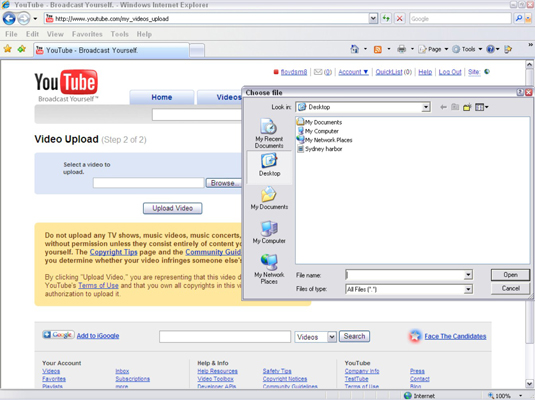

6
Select a video to upload and click the Upload a Video button.
The Video Upload dialog box for a video upload appears.
7
Click Browse and select the video file to upload.
This lets you browse to the location on your hard drive where you saved your video.
8
Click Upload Video.
Wait until the upload completes before doing
anything else. That process can take up to several minutes, depending on
the size of the file and the speed of your connection. On a 56K modem
(or on a bad broadband day), the upload may take as long as 3 minutes
per megabyte. On upload, your file is automatically converted to
YouTube’s proprietary format, as described above. Eventually, the Video
Upload — Upload Complete screen appears.
How to Upload a Video clip to YouTube
 Reviewed by Technology Support
on
9:56 PM
Rating:
Reviewed by Technology Support
on
9:56 PM
Rating:
Reviewed by Technology Support
on
9:56 PM
Rating:


No comments: